Projects
Now that I have visually defined a card, the next thing to do is to move it around the scene.
To do this, we first have to detect the cards. We will do this using ‘Raycast’ functions, which fire rays that provide information about an object when they collide with it.
Since it is a performance-heavy operation, we will use some tricks to optimize it. First, we will create a layer to discard objects that are not involved in the operation. We will name it ‘DragAndDrop’.
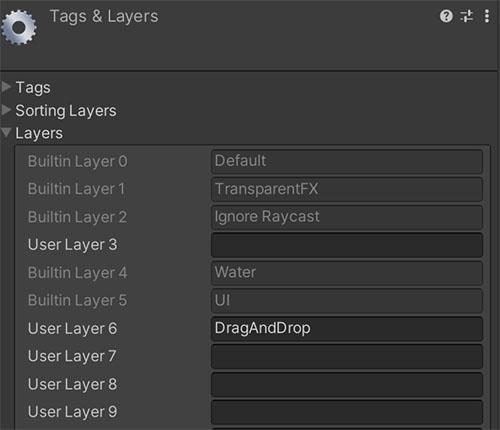
We will also limit the ray length to the maximum distance our camera sees, since we’re generally not interested in objects we can’t see. This distance is Camera.main.farClipPlane.
Since the ‘Raycast’ operation is used inside the Update loop (executed every frame), it’s a good idea to avoid memory allocation. Therefore, we will create a Ray and use the Physics.RaycastNonAlloc function.
The code to detect the cards looks something like this:
  // Layer of the objects to be detected.
  [SerializeField]
  private LayerMask raycastMask;

  // How many ray impacts we want to obtain.
  private const int HitsCount = 5;

  // Information on the impacts of shooting a ray.
  private readonly RaycastHit[] raycastHits = new RaycastHit[HitsCount];

  // Ray created from the camera to the projection of the mouse
  // coordinates on the scene.
  private Ray mouseRay;

  /// <summary>
  /// Returns the Transform of the object closest to the origin
  /// of the ray.
  /// </summary>
  /// <returns>Transform or null if there is no impact.</returns>
  private Transform MouseRaycast()
  {
    Transform hit = null;

    // Fire the ray!
    if (Physics.RaycastNonAlloc(mouseRay,
                                raycastHits,
                                Camera.main.farClipPlane,
                                raycastMask) > 0)
    {
      // We sort the impacts by distance.
      System.Array.Sort(raycastHits,
                        (x, y) => x.distance.CompareTo(y.distance));


      // We are only interested in the first one.
      hit = raycastHits[0].transform;
    }

    return hit;
  }
Before calling this function, we must update mouseRay with the mouse coordinates. We can do it with this code:
mouseRay = Camera.main.ScreenPointToRay(Input.mousePosition);To get this working on a card, we must first add a ‘Collider’. Without this component, our ray would pass through the card without detecting it. A ‘Box Collider’ is a good choice for this geometry, but you can use a ‘Mesh Collider’ if you need more precision.
Second, we assign the selected layer to the card. We are now ready to detect a card.

Now we can start moving our cards. First, we will define two interfaces; the first one is IDrag, for draggable objects.
/// <summary>
/// Draggable object.
/// </summary>
public interface IDrag
{
  /// <summary> Can it be dragged? </summary>
  public bool IsDraggable { get; }

  /// <summary> A Drag operation is currently underway. </summary>
  public bool Dragging { get; set; }

  /// <summary> Mouse enters the object. </summary>
  /// <param name="position">Mouse position.</param>
  public void OnPointerEnter(Vector3 position);

  /// <summary> Mouse exits object. </summary>
  /// <param name="position">Mouse position.</param>
  public void OnPointerExit(Vector3 position);

  /// <summary> Drag begins. </summary>
  /// <param name="position">Mouse position.</param>
  public void OnBeginDrag(Vector3 position);

  /// <summary> A drag is in progress. </summary>
  /// <param name="deltaPosition"> Mouse offset position. </param>
  /// <param name="droppable">
  /// Object on which a drop may be made, or null. </param>
  public void OnDrag(Vector3 deltaPosition, IDrop droppable);

  /// <summary> The drag operation is completed. </summary>
  /// <param name="position">Mouse position.</param>
  /// <param name="droppable">
  /// Object on which a drop may be made, or null. </param>
  public void OnEndDrag(Vector3 position, IDrop droppable);
}
And the second is IDrop, for objects that can accept IDrag objects.
/// <summary>
/// Accept draggable objects.
/// </summary>
public interface IDrop
{
  /// <summary> Is it droppable? </summary>
  public bool IsDroppable { get; }

  /// <summary> Accept an IDrag? </summary>
  /// <param name="drag">Object IDrag.</param>
  /// <returns>Accept or not the object.</returns>
  public bool AcceptDrop(IDrag drag);

  /// <summary> Performs the drop operation of an IDrag object. </summary>
  /// <param name="drag">Object IDrag.</param>
  public void OnDrop(IDrag drag);
}
As you can see, IDrop authorizes an IDrag via its AcceptDrop method, determining whether or not to accept a drop operation.
With these two interfaces ready, we can implement the class responsible for handling the drag-and-drop operations. We can call it DragAndDropManager, and it will be a MonoBehaviour. A drag-and-drop operation can be divided into:
- There is no drag operation at present.
- Cards must be detected under the mouse pointer.
- If a card is detected and the left mouse button is pressed, a drag operation starts and the OnBeginDrag method is called.
- If a card is detected but no button is pressed, the OnPointerEnter and OnPointerExit methods of that card are called.
- A drag operation is in progress.
- If the left mouse button is pressed, the card should be moved and the OnDrag method should be called.
- If it is not, the drag operation must be finished and the OnEndDrag method must be called.
This must be done every frame, so we’ll place it inside the Update function of DragAndDropManager. We will use these variables:
// Height at which we want the card to be in a drag operation.
[SerializeField, Range(0.0f, 10.0f)]
private float height = 1.0f;

// The object currently being dragged,
// or null if no drag operation exists.
private IDrag currentDrag;

// IDrag objects that the mouse passes over.
private IDrag possibleDrag;

// To know the position of the drag object.
private Transform currentDragTransform;

// To calculate the mouse offset (in world-space).
private Vector3 oldMouseWorldPosition;
Let’s see how to detect an IDrag.
/// <summary>Detects an IDrag object under the mouse.</summary>
/// <returns>IDrag or null.</returns>
public IDrag DetectDraggable()
{
  IDrag draggable = null;

  mouseRay = Camera.main.ScreenPointToRay(Input.mousePosition);

  Transform hit = MouseRaycast();
  if (hit != null)
  {
    draggable = hit.GetComponent<IDrag>();
    if (draggable is { IsDraggable: true })
      currentDragTransform = hit;
    else
      draggable = null;
  }

  return draggable;
}
Now there are two possibilities: the left mouse button is either pressed or not. If it is pressed and there is an IDrag object under the mouse pointer:
IDrag draggable = DetectDraggable();

// Left mouse button pressed?
if (Input.GetMouseButtonDown(0) == true)
{
  // Is there an IDrag object under the mouse pointer?
  if (draggable != null)
  {
    // We have an object to start the drag operation!
    currentDrag = draggable;
    currentDragTransform = hit;
    oldMouseWorldPosition = MousePositionToWorldPoint();

    // Hide the mouse icon.
    Cursor.visible = false;
    // And we lock the cursor to the window frame,
    // so we can't move objects out of the camera's view.
    Cursor.lockState = CursorLockMode.Confined;

    // The drag operation starts.
    currentDrag.Dragging = true;
    currentDrag.OnBeginDrag(new Vector3(raycastHits[0].point.x,
                                        raycastHits[0].point.y + height,
                                        raycastHits[0].point.z));
  }
}
And if the left mouse button is not pressed:
// Left mouse button not pressed?
if (Input.GetMouseButtonDown(0) == false)
{
  // Are we passing over a new IDrag?
  if (draggable != null && possibleDrag == null)
  {
    // We call its OnPointerEnter.
    possibleDrag = draggable;
    possibleDrag.OnPointerEnter(raycastHits[0].point);
  }

  // Are we leaving an IDrag?
  if (draggable == null && possibleDrag != null)
  {
    // We call its OnPointerExit.
    possibleDrag.OnPointerExit(raycastHits[0].point);
    possibleDrag = null;
  }
}
We have finished the first part; now let's move on to the second part: handling a drag operation. First, we'll create a new method to find the **IDrop** object under a card. It's not as simple as `DetectDraggable()`, since a card has a surface area and can overlap several objects at once. We will need to fire four rays, one for each corner. To choose the correct one, we will sort the hits by proximity to the center of the card; this way, we'll get the `IDrop` object that is closest to the card.

We will store the rays hits in an array:

```c#
// Information on hits from the corners of a card.
private readonly RaycastHit[] cardHits = new RaycastHit[4];
And this is the method to find the nearest IDrop:
/// <summary>Detects an IDrop object under the mouse.</summary>
/// <returns>IDrop or null.</returns>
private IDrop DetectDroppable()
{
  IDrop droppable = null;

  // The four corners of the card.
  Vector3 position = currentDragTransform.position;
  Vector2 halfSize = cardSize * 0.5f;
  Vector3[] cardConner =
  {
    new(position.x + halfSize.x, position.y, position.z - halfSize.y),
    new(position.x + halfSize.x, position.y, position.z + halfSize.y),
    new(position.x - halfSize.x, position.y, position.z - halfSize.y),
    new(position.x - halfSize.x, position.y, position.z + halfSize.y)
  };

  int cardHitIndex = 0;
  cardHits.Clear();

  // We fire the four rays.
  for (int i = 0; i < cardConner.Length; ++i)
  {
    Ray ray = new(cardConner[i], Vector3.down);
    if (Physics.RaycastNonAlloc(ray,
                                raycastHits,
                                Camera.main.farClipPlane,
                                raycastMask) > 0)
    {
      // We sort the impacts by distance from the origin of the ray.
      System.Array.Sort(raycastHits, (x, y) =>
        x.distance.CompareTo(y.distance));

      // We are only interested in the closest one.
      cardHits[cardHitIndex++] = raycastHits[0];
    }
  }

  if (cardHitIndex > 0)
  {
    // We look for the nearest possible IDrop.
    System.Array.Sort(cardHits, (x, y) =>
      x.distance.CompareTo(y.distance));

    droppable = cardHits[0].transform.GetComponent<IDrop>();
  }

  return droppable;
}
Let’s see it in action:

We can now proceed to the part where we handle a drag operation:
if (currentDrag != null)
{
  IDrop droppable = DetectDroppable();

  // Is the left mouse button held down?
  if (Input.GetMouseButton(0) == true)
  {
    // Calculate the offset of the mouse with respect
    // to its previous position.
    Vector3 mouseWorldPosition = MousePositionToWorldPoint();
    Vector3 offset = mouseWorldPosition - oldMouseWorldPosition;
    offset *= dragSpeed;

    // OnDrag is called.
    currentDrag.OnDrag(offset, droppable);

    oldMouseWorldPosition = mouseWorldPosition;
  }
  else if (Input.GetMouseButtonUp(0) == true)
  {
    // The left mouse button is released and
    // the drag operation ends.
    currentDrag.Dragging = false;
    currentDrag.OnEndDrag(raycastHits[0].point, droppable);
    currentDrag = null;
    currentDragTransform = null;

    // We reset the mouse cursor to its normal state.
    Cursor.visible = true;
    Cursor.lockState = CursorLockMode.None;
  }
}
We already have the complete manager, but if you look at the code it doesn’t actually move anything. That’s because it’s the IDrag objects that are responsible for doing it. Let’s see how they would be an object IDrag, which in our case is a card.
/// <summary> Card Drag. </summary>
[RequireComponent(typeof(Collider))]
public sealed class CardDrag : MonoBehaviour, IDrag
{
  public bool IsDraggable { get; private set; } = true;

  public bool Dragging { get; set; }

  // Position when the Drag starts.
  private Vector3 dragOriginPosition;

  // Unused for the moment.
  public void OnPointerEnter(Vector3 position) { }
  public void OnPointerExit(Vector3 position)  { }

  /// <summary> Drag begins. </summary>
  /// <param name="position">Mouse position.</param>
  public void OnBeginDrag(Vector3 position)
  {
    // We store the current position, so that in case
    // the drag operation is not completed, the card
    // will return to its original position.
    dragOriginPosition = transform.position;

    // We raise the card to the height indicated by 'position'.
    transform.position = new Vector3(transform.position.x,
                                     position.y,
                                     transform.position.z);
  }

  /// <summary>A drag is being made. </summary>
  /// <param name="deltaPosition"> Mouse offset position. </param>
  /// <param name="droppable">Object on which a drop may be made, or null.</param>
  public void OnDrag(Vector3 deltaPosition, IDrop droppable)
  {
    // We ignore the displacement of the height.
    deltaPosition.y = 0.0f;

    // We move the card.
    transform.position += deltaPosition;
  }

  /// <summary> The drag operation is completed. </summary>
  /// <param name="position">Mouse position.</param>
  /// <param name="droppable">Object on which a drop may be made, or null.</param>
  public void OnEndDrag(Vector3 position, IDrop droppable)
  {
    // The IDrop object is active and accepts IDrag.
    if (droppable is { IsDroppable: true } &&
        droppable.AcceptDrop(this) == true)
      transform.position = new Vector3(transform.position.x,
                                       position.y,
                                       transform.position.z);
    else
      // There was no drop, we return to the original position.
      transform.position = dragOriginPosition;
  }
}We also need an IDrop object that will accept our traveling card. It is as simple as this:
/// <summary>
/// Accept draggable objects.
/// </summary>
public class DroppableFloor : MonoBehaviour, IDrop
{
  public bool IsDroppable => true;

  // We accept all IDrags.
  public bool AcceptDrop(IDrag drag) => true;

  public void OnDrop(IDrag drag) { }
}
Let’s take a look at a successful drag operation.

And now one that does not, since one of the corners collides with an IDrag (another card) and this one is closer to the IDrop (the ground).

We already have the basics. Now let’s improve it a bit. The first thing we can do is change the way we pick up and drop the cards. Now they do it instantly,
they teleport to the position we tell them to. Instead we can use the velocity formula (velocity = space / time) to move with constant velocity the cards.
We would have something like this:

Better, but still doesn’t give a good feeling. Objects in real life do not reach a speed at instance, they have inertia. To make it similar in a simple way we can use Easing functions, functions that interpolate values (values, vectors, colors, etc) using different curves.

There are many libraries with these functions. You may be interested in using my ‘Tiny Tween’, a simple to use library, very complete and in one file.
Let’s change the way we pick up cards, using ‘Tiny Tween’ to raise it to the height we want in a natural way.
public void OnBeginDrag(Vector3 position)
{
  dragOriginPosition = transform.position;

  // While the card is being lifted, we do not want it to be draggable.
  IsDraggable = false;

  // We create a Tween to change the height of the card.
  TweenFloat.Create()
    .Origin(dragOriginPosition.y)   // Origin.
    .Destination(position.y)        // Destination.
    .Duration(riseDuration)         // Duration.
    .EasingIn(riseEaseIn)           // Initial Easing function.
    .EasingOut(riseEaseOut)         // Final Easing function.
    // This is where the position is modified.
    .OnUpdate(tween => transform.position =
      new Vector3(transform.position.x,
                  tween.Value,      // Only the height.
                  transform.position.z))
    .OnEnd(_ => IsDraggable = true) // When finished,
                                    // it becomes draggable again.
    .Start();
}
And this would be the result:

Much better! And only adding one file! ;)
Let’s apply the same change to how the card moves. Right now it’s very static, it looks like it’s moving in a vacuum. We can exaggerate the friction of a flexible object moving in the air and rotate the cards depending on their direction and speed. You may have seen this effect in games such as ‘Hearthstone’.
We are going to modify the angles of the card according to its velocity vector. Specifically we will change the pitch and roll.

Each axis will have a force that will be applied to modify that axis. We will also limit the range of the angles. And finally a time that will be the time it takes for the axes to return to their original value.
[Header("Pitch")]

[SerializeField, Label("Force")]
private float pitchForce = 10.0f;

[SerializeField, Label("Minimum Angle")]
private float pitchMinAngle = -25.0f;

[SerializeField, Label("Maximum Angle")]
private float pitchMaxAngle = 25.0f;

[Space]

[Header("Roll")]

[SerializeField, Label("Force")]
private float rollForce = 10.0f;

[SerializeField, Label("Minimum Angle")]
private float rollMinAngle = -25.0f;

[SerializeField, Label("Maximum Angle")]
private float rollMaxAngle = 25.0f;

[Space]

[SerializeField]
private float restTime = 1.0f;

// Pitch angle and velocity.
private float pitchAngle, pitchVelocity;

// Roll angle and velocity.
private float rollAngle, rollVelocity;

// To calculate the velocity vector.
private Vector3 oldPosition;

// The original rotation
private Vector3 originalAngles;
In each frame we must calculate:
- The velocity vector, or offset, of the card.
- Calculate the pitch and roll depending on each axis and its force (pitchForce and rollForce).
- Limit the angles to the valid ranges.
- Calculate the angles and over time (restTime) tend to zero.
- Apply the angles to the rotation of the card.
The offset vector is very simple, just subtract the current position from the position of the previous frame.
Vector3 currentPosition = transform.position;
Vector3 offset = currentPosition - oldPosition;

...

oldPosition = currentPosition;
To rule out small vibrations, we will only calculate the angles when the modulus of offset is greater than Mathf.Epsilon (which is a value very close to zero). And since we don’t care about the actual value of the modulus, we will use Vector3.sqrMagnitude to avoid calculating a square root.
if (offset.sqrMagnitude > Mathf.Epsilon)
{
  pitchAngle = Mathf.Clamp(pitchAngle + offset.z * pitchForce,
                           pitchMinAngle,
                           pitchMaxAngle);
  rollAngle = Mathf.Clamp(rollAngle + offset.x * rollForce,
                          rollMinAngle,
                          rollMaxAngle);
}
We already have the value of each angle, now we want that little by little those values tend to be at rest (restTime). To do it we will use the function Mathf.SmoothDamp that also smooths the changes.
pitchAngle = Mathf.SmoothDamp(pitchAngle,
                              0.0f,
                              ref pitchVelocity,
                              restTime * Time.deltaTime * 10.0f);
rollAngle = Mathf.SmoothDamp(rollAngle,
                             0.0f,
                             ref rollVelocity,
                             restTime * Time.deltaTime * 10.0f);
And now we only have to apply the angles to the rotation of the card.
transform.rotation = Quaternion.Euler(originalAngles.x + pitchAngle,
                                      originalAngles.y,
                                      originalAngles.z - rollAngle);
Let’s see the result.

Nice! That’s all for now. In next posts we will see some useful objects for a card game such as: decks, slot, etc. In the meantime you can add some improvements like:
- Choose which Easing functions to use to pick up cards and drop them. I am using Quart/Back to pick them up and Quart/Bounce to drop them.
- Add some dust particles when dropping a card.
- Add a camera shake when dropping a card to give it more drama.
- And… can you think of anything else? I’d love to read about it in the comments.
Until next time…
stay gamedev, stay awesome!